
Knowledge Bases
A knowledge base holds what the AI knows about your business: what you do, your prices, the services you don’t provide, answers to common questions, and files such as long price lists. The AI replies on your sources and your voice agents read the same knowledge base, so a price you change once is right in chats and on calls.
Knowledge bases belong to a business. Each source, business and voice agent uses one knowledge base. A business can pick one knowledge base for all its sources, or a separate one for each source type. When several places use the same one, an edit applies to all of them.
Getting here
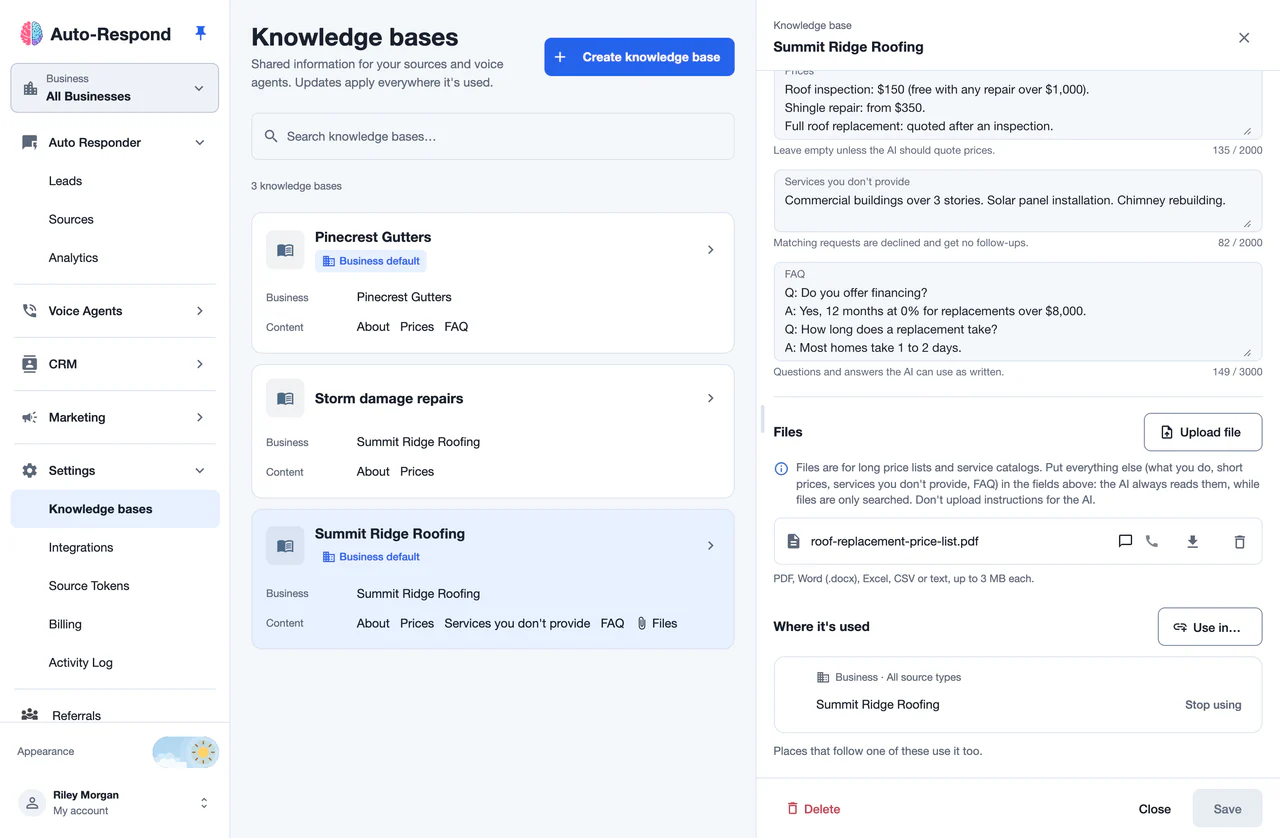
In Auto-Respond, open Settings → Knowledge bases in the sidebar. The page lists the knowledge bases of the business picked in the sidebar’s Business switcher, or of all your businesses when All Businesses is selected. Click a knowledge base to open it in a side panel.
You can also edit the knowledge base a place uses without leaving its settings:
- A source or a business - Messaging Settings → Conversation Setup → Knowledge base. It’s shown once a channel there is in AI Assistant mode. See Knowledge Base in Conversation Setup.
- A voice agent - open the agent → Knowledge base. See Voice agent knowledge base.
What’s in a knowledge base
Four text fields and a list of files. Chats and calls always see the texts. Files are searched when the texts don’t have the answer.
| Field | Up to | What to put there |
|---|---|---|
| About the business | 1,000 characters | What you do and where you work. |
| Prices | 2,000 characters | Prices the AI may quote. Leave it empty unless the AI should quote prices. |
| Services you don’t provide | 2,000 characters | Work you don’t take. Matching requests are declined and get no follow-ups. |
| FAQ | 3,000 characters | Questions and answers the AI can use as written. |
Files
Files are for long price lists and service catalogs. Put everything else in the fields above: the AI always reads the fields, while files are only searched. Don’t upload instructions for the AI.
- Formats: PDF, Word (.docx), Excel (.xlsx, .xls), CSV and text (.txt).
- Size: up to 3 MB per file.
- Upload: click Upload file. A file is added to the knowledge base right away, before you save.
- Download: the download button next to a file gives you back the file as uploaded.
- Delete: the delete button removes the file from every place that uses the knowledge base.
Each file shows two icons, one for chats and one for calls:
- Chats - the file is ready for chats once a business or source uses the knowledge base.
- Calls - the file is ready for calls once a voice agent is saved with the knowledge base.
A file that couldn’t be read is marked Couldn’t be read. Delete it and upload it again.
Let the AI fill in the fields from a file
After an upload, the AI reads the file and suggests texts for the fields (Suggested from and the file name):
- Tick the fields you want and click Apply to fields, or click Dismiss. Applying replaces each ticked field with the suggested text. Nothing is saved until you save.
- A field you changed after the AI read the file isn’t ticked. Tick it only if the suggestion should replace your newer text.
- If the file contains instructions for the AI rather than facts, the suggestion lists them. Add those to your voice agent’s Custom Rules or to Messaging Settings instead.
- The suggestion also says whether to keep the file (a long price list that doesn’t fit the fields) or delete it once the fields are saved.
Instructions or knowledge base: which one wins
Conversation Setup also has Instructions for the AI: how the AI should answer. The two work together:
- Behavior comes from the instructions - tone, what to ask, and whether or when to bring up a price. If the instructions say not to give prices, the AI doesn’t name one, even when the knowledge base has prices.
- Prices and facts come from the knowledge base. When the instructions state a price or fact that differs from the knowledge base, the AI uses the knowledge base’s value and still follows the rest of the instruction.
- Promotions aren’t a conflict. A regular price in the knowledge base and a promotional price in the instructions can both be used.
- Where the knowledge base says nothing, what the instructions say still applies.
Put prices, services and facts in the knowledge base, and keep the instructions for how the AI should talk and act.
Which knowledge base a place uses
- A source uses its business’s knowledge base unless you pick another one for it.
- A business uses the knowledge base of the business above it, for the same source type, unless you pick another one. A top-level business has nothing above it.
- A voice agent uses its own pick. Without one, it uses the knowledge base that the sources it answers for agree on, or else its business’s.
- No knowledge base is also a choice: the AI then answers without prices, FAQ or files.
On the Knowledge bases page, a knowledge base that a business picked for itself is marked Business default: that business’s sources and voice agents use it unless they pick another one.
You don’t need to create your business’s first knowledge base here. When you add prices, FAQ or files in Messaging Settings or in a voice agent and nothing above has a knowledge base yet, that becomes your business’s knowledge base.
Create a knowledge base
Click Create knowledge base
On Settings → Knowledge bases, click Create knowledge base.
Name it and pick its business
Enter a Name and pick Belongs to: this business and the businesses under it can use the knowledge base, and admins and managers of this business or a business above it can change it.
Fill in the fields and create it
Add the texts and click Create. The panel stays open on the new knowledge base.
Add files
Files can be added once the knowledge base is created: click Upload file.
Use it somewhere
Under Where it’s used, click Use in… and pick the places. A place uses one knowledge base, so the places you pick stop using what they use now. You can also pick it in a place’s own settings.
You can also start a new one from a place’s settings: pick New knowledge base in the picker, fill it in, and save the place.
Where it’s used
The panel of a knowledge base lists the businesses, source types, sources and voice agents that picked it. Places that follow one of them use it too.
- Stop using next to a place makes it go back to what the level above it uses: the business above it, its business, or for a voice agent its sources or its business. A top-level business has nothing above it and is left without a knowledge base.
- Delete at the bottom of the panel removes the knowledge base. The places that used it go back to the knowledge base above them, or to none if there isn’t one. This can’t be undone.
Who can change it
- The knowledge base itself - its texts, files, name and deletion: admins and managers of the business it belongs to, or of a business above it. Everyone else sees it read only, marked Managed by its business.
- Which knowledge base a place uses - admins and managers of that place’s business or a business above it. People with access to one source only see what it uses, read only.
On the Sources page, the Messaging Settings button is shown only to a source’s admins. A manager opens a source’s settings from one of its leads: the lead’s ⋯ menu → Source Messaging Settings. Or pick the places for a knowledge base with Use in… on the Knowledge bases page.
Troubleshooting
- The AI quotes a wrong price - Check the Prices field of the knowledge base the source uses (Messaging Settings → Conversation Setup → Knowledge base), and whether Instructions for the AI say not to quote prices.
- The AI doesn’t use a file - Make sure the source or agent uses this knowledge base (the file’s chat or call icon is on) and the file isn’t marked Couldn’t be read. Move short, important facts into the fields: the AI always reads them.
- A change shows up on other sources too - They use the same knowledge base. Pick New knowledge base for the place that needs different content.
- The fields are locked - You need to be an admin or manager of the business the knowledge base belongs to, or of a business above it. In Messaging Settings, the section also stays locked while the place uses its business’s Conversation Setup: turn on Customize for Location.
Questions? Email support@auto-respond.com.